


If you've ever spent hours wrestling with native Bluetooth LE debugging tools, dealing with complex setup procedures, or waiting for app store approvals just to test a simple characteristic read, you're going to appreciate what I'm about to share with you.
I've been working on a tool that I believe will significantly improve the Bluetooth LE development and debugging workflow for many of you. It's called BleuIO Explorer, and it runs entirely in your web browser.
In this post, we'll cover:
- What BleuIO Explorer is and why I built it
- The four main capabilities: scanning, connections, GATT exploration, and advertising
- How to get started in under a minute
- Real-world use cases where this tool shines
The Problem with Existing Bluetooth LE Tools
Before we dive into the solution, let's take a step back and acknowledge the pain points that many Bluetooth LE developers face daily.
Most Bluetooth LE debugging tools fall into one of these categories:
- Mobile apps (like nRF Connect or LightBlue) - Great for quick checks, but limited screen real estate, difficult to copy/paste data, and you're constantly switching between your phone and computer
- Desktop applications - Often require specific hardware, complex installation procedures, or platform-specific builds
- Command-line tools - Powerful but not exactly user-friendly for rapid prototyping
What if you could have a debugging tool that combines the convenience of a web app with the power of a dedicated desktop application? That's exactly what BleuIO Explorer aims to deliver.
What is BleuIO Explorer?
BleuIO Explorer is a free, browser-based Bluetooth LE debugging and prototyping tool that works with the BleuIO USB dongle. It leverages the Web Serial API (available in Chrome, Edge, and Opera) to communicate directly with the dongle from your browser - no installation required.
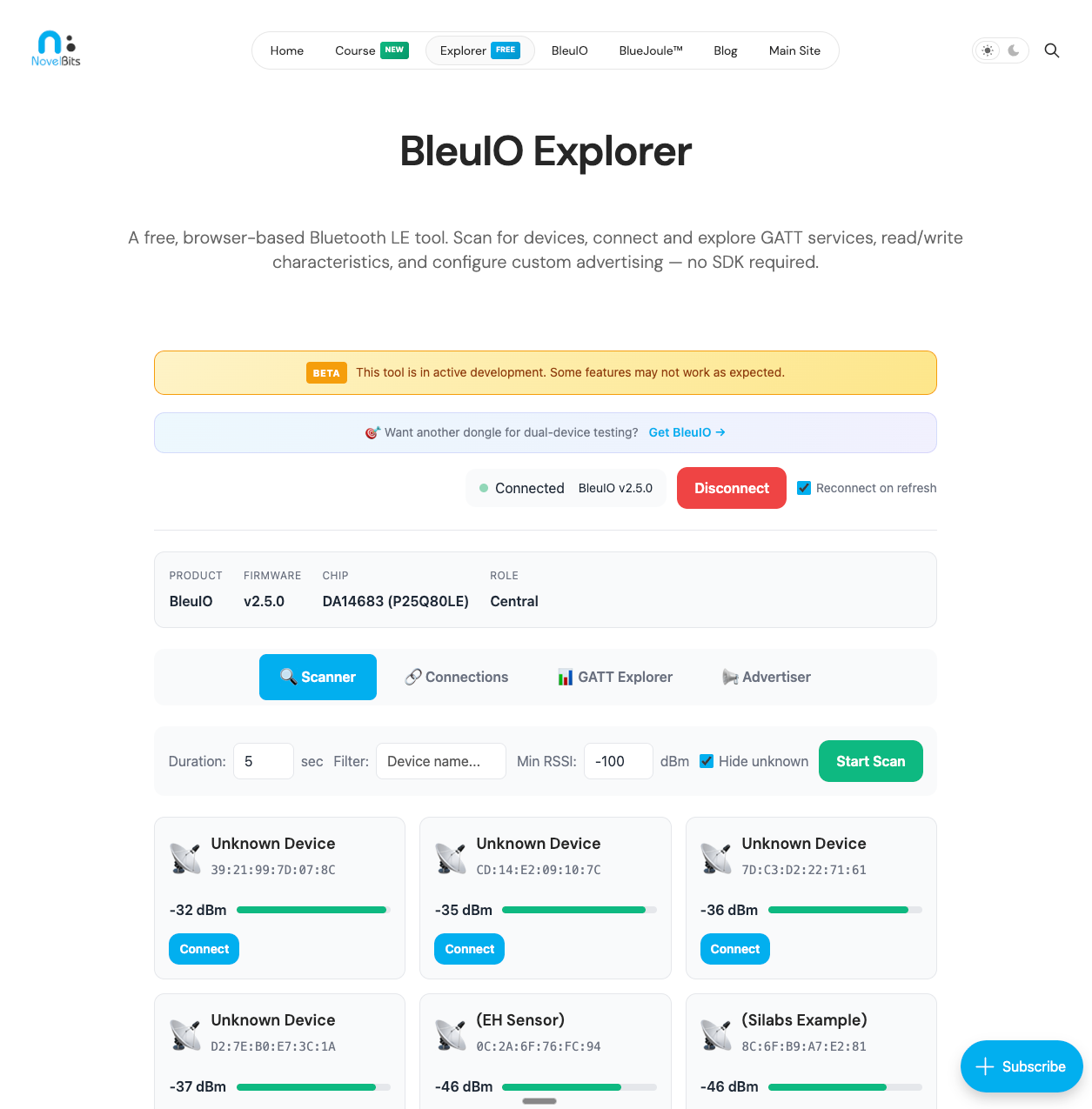
Let's walk through the four main capabilities that make this tool useful for everyday Bluetooth LE development.
1. Device Scanning
The Scanner tab is where most debugging sessions begin. With BleuIO Explorer, you can discover nearby Bluetooth LE devices with several filtering options to help you find exactly what you're looking for.
Key scanning features include:
- Adjustable scan duration - Set anywhere from 1 to 30 seconds depending on your needs
- Device name filtering - Quickly find devices by typing part of their name (case-insensitive)
- RSSI threshold - Filter out distant devices to focus on nearby ones
- Hide unknown devices - Remove unnamed devices from the list to reduce clutter
For each discovered device, you'll see:
- Device name (with smart emoji icons based on device type - heart monitors get ❤️, headphones get 🎧, and so on)
- MAC address
- Real-time RSSI signal strength with a visual indicator
- Whether the device is connectable or a beacon
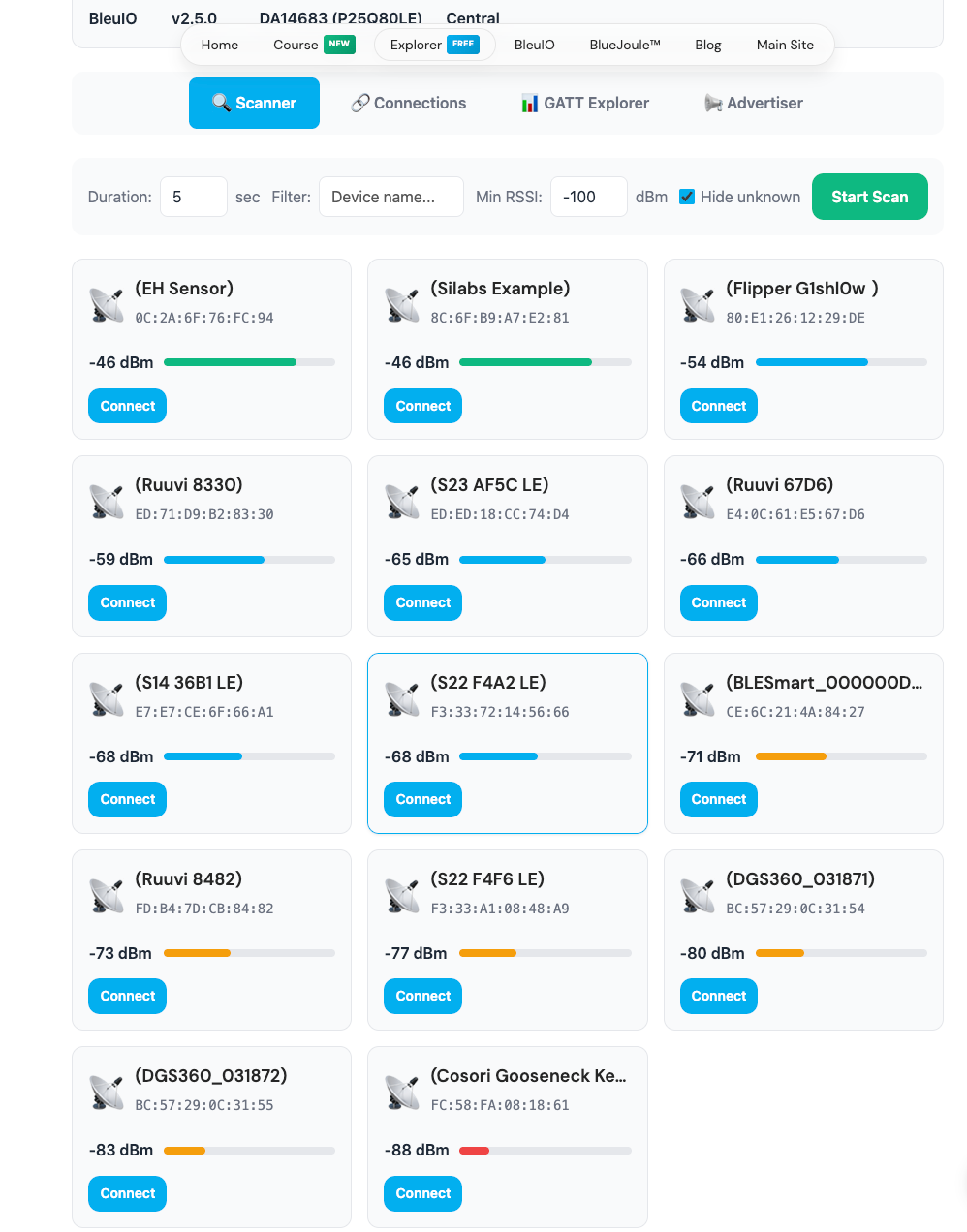
For example, if you're debugging a heart rate monitor and there are dozens of devices nearby, you can simply type "heart" in the filter field, and the list will instantly narrow down to matching devices.
2. Connection Management
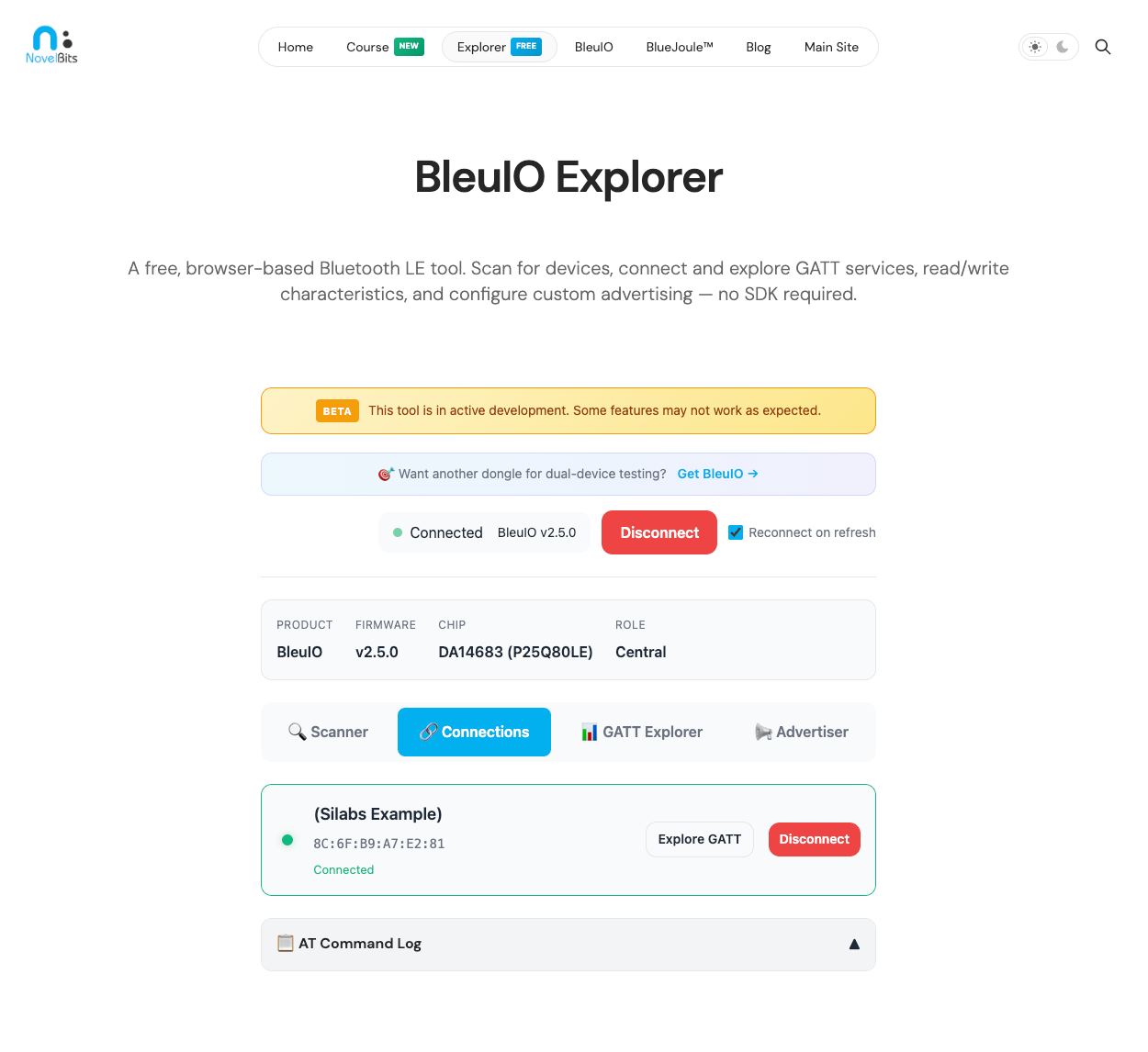
Once you've found the device you want to debug, connecting is straightforward. Click the "Connect" button on any connectable device, and BleuIO Explorer handles the rest.
The Connections tab provides:
- Real-time connection status - Watch the connection progress through each step (opening port, verifying dongle, configuring, ready)
- Active connection list - See all currently connected devices at a glance
- Quick GATT access - Jump directly to exploring a device's services and characteristics
- Unexpected disconnection alerts - Get notified immediately if a device disconnects
One feature I'm particularly pleased with is the auto-reconnect option. If you enable "Reconnect on refresh," the tool will automatically reconnect to your BleuIO dongle when you reload the page - a small convenience that saves time during iterative development.
3. GATT Explorer
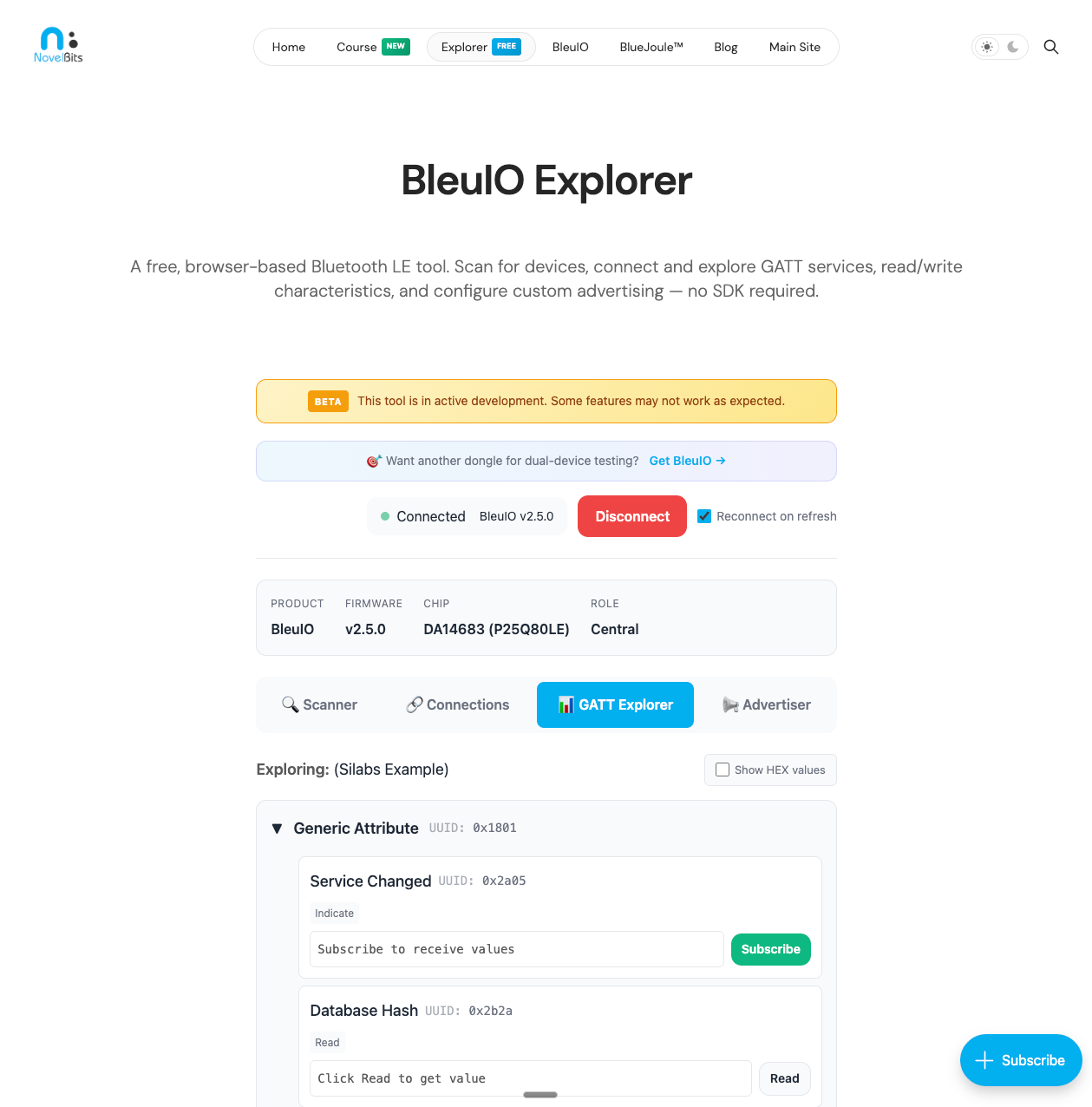
This is where BleuIO Explorer really shines for debugging purposes. The GATT Explorer tab provides a hierarchical view of all services and characteristics on a connected device.
For each characteristic, you can:
- Read values - Fetch the current value with a single click
- Write values - Send data in either HEX or text format
- Write without response - For characteristics that support this faster write mode
- Subscribe to notifications - Real-time updates when values change
- Subscribe to indications - For characteristics that require acknowledgment
The interface clearly shows which operations are available for each characteristic through property badges (Read, Write, Write No Response, Notify, Indicate). This means you won't waste time trying to write to a read-only characteristic.
For example, if you're testing a custom sensor that sends temperature readings via notifications, you can subscribe to the temperature characteristic and watch the values update in real-time as the sensor takes measurements. The value display supports both HEX and interpreted ASCII modes, so you can toggle between raw bytes and human-readable text.
4. Advertiser
The Advertiser tab lets you configure and broadcast custom Bluetooth LE advertisements - turning your computer (via the BleuIO dongle) into a BLE peripheral.
This is incredibly useful for:
- Testing how your mobile app discovers and filters devices
- Prototyping beacon configurations
- Simulating a peripheral before the hardware is ready
- Teaching and demonstrating BLE concepts
Advertisement configuration options include:
- Advertisement type - Connectable, Non-Connectable (beacon), or Scannable
- Device name - Set the Complete Local Name that scanners will see
- Service UUIDs - Advertise specific services (with autocomplete for standard UUIDs)
- Manufacturer data - Include custom manufacturer-specific data with company ID lookup
- Advertising interval - Control how frequently advertisements are broadcast
- Raw data mode - For advanced users who need precise control over the advertisement payload
The tool includes a real-time packet size indicator that shows how much of the available advertisement space you're using. This helps you stay within the 31-byte limit (or 28 bytes for connectable advertisements that include flags).
For example, if you're building an app that needs to discover devices advertising a specific service UUID, you can use BleuIO Explorer to broadcast that exact advertisement and verify your app's filtering logic works correctly.
Getting Started
Getting up and running with BleuIO Explorer takes less than a minute:
- Get a BleuIO dongle - If you don't already have one, you can order from our shop
- Plug it in - Connect the dongle to any USB port on your computer
- Open the tool - Navigate to BleuIO Explorer in Chrome, Edge, or Opera
- Connect - Click "Connect Dongle" and select the BleuIO from the port picker
That's it. No drivers to install, no software to download, no accounts to create. You're ready to start scanning, connecting, and debugging.
Real-World Use Cases
Let me share a few scenarios where BleuIO Explorer has proven particularly valuable:
Debugging Connection Issues
When a mobile app fails to connect to a Bluetooth LE device, it's often unclear whether the problem is with the app, the device, or the connection parameters. With BleuIO Explorer, you can quickly verify that the device is advertising correctly, that it's connectable, and that its GATT services are accessible. If BleuIO Explorer can connect and read characteristics successfully, you know the issue is likely in your app code.
Verifying Firmware Updates
After flashing new firmware to a BLE device, you want to verify that the GATT structure is correct and that characteristics behave as expected. BleuIO Explorer lets you rapidly test read/write operations without writing any code.
Teaching and Demonstrations
If you're teaching Bluetooth LE concepts, having a visual tool that runs in a browser makes demonstrations much more accessible. Students can follow along on their own computers without complex setup procedures.
Quick Prototyping
Before writing mobile app code to interact with a BLE device, you can use BleuIO Explorer to understand the device's GATT structure, test different write commands, and observe notification patterns. This exploration phase often reveals important details that inform your app's architecture.
Browser Compatibility
BleuIO Explorer requires a browser that supports the Web Serial API:
- Chrome 89+ (recommended)
- Edge 89+
- Opera 75+
Unfortunately, Safari and Firefox don't currently support Web Serial API, so they won't work with this tool. If you're primarily a Safari user, Chrome can be used just for this purpose.
What's Next
BleuIO Explorer is currently in beta, and I'm actively working on improvements based on user feedback. Some features on the roadmap include:
- Saving and loading device profiles
- Exporting scan results and GATT data
- Improved dark mode support
- Additional advertisement data type builders
If you have feature requests or encounter any issues, I'd love to hear from you.
Try It Now
BleuIO Explorer is available now at learn.novelbits.io/bleuio-explorer. If you have a BleuIO dongle, give it a try and let me know what you think.
If you don't have a dongle yet but want to see the interface, you can still open the tool - it will show a placeholder prompting you to connect a dongle, but you'll get a sense of the layout and capabilities.
Summary
In this post, we introduced BleuIO Explorer, a free browser-based Bluetooth LE debugging tool. Here's what we covered:
- Scanner - Discover and filter nearby BLE devices with real-time RSSI visualization
- Connections - Manage device connections with auto-reconnect support
- GATT Explorer - Read, write, and subscribe to characteristics with full property support
- Advertiser - Configure and broadcast custom BLE advertisements
You should now be able to use BleuIO Explorer to debug BLE devices, verify GATT implementations, and prototype advertising configurations - all without leaving your browser.


