


If you want to learn how to create a GATT server and load it with some attributes, then you might find this tutorial helpful. The process of creating a GATT server is not as daunting or complicated, that is, once you break it down into easy steps.
What You Will Need:
- Read the ATT Protocol layer and GATT Profile post
- Silab's Configurator tool (within Simplicity Studio)
This is a simple, straightforward guide that will hopefully demystify the process and make it easy to follow.
Before we begin, there are a few things we need to go over again:
- What is a GATT server?
- Attributes
- Organizing data in a hierarchical model - services and characteristics
- UUIDs
GATT Servers & GATT Clients?
When two connected devices exchange data using Bluetooth Low Energy (LE) technology, they follow a client-server architecture, where one device has the data or resource and the other device requests it.
The device with the data is called the GATT server, while the one requesting it is known as the GATT client.
So, to an extent, designing a GATT server is similar to designing a database.
And to do so, we need to understand three things:
- The format in which each piece of data is stored,
- How groups of data are organized, and
- The different ways the data can be accessed.
Let's begin with the format.
Attribute
The GATT Server uses the Attribute data structure to store its data.
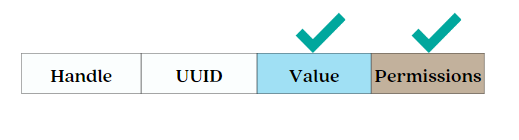
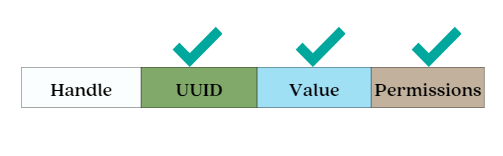
This data structure has four fields:
- Handle
- UUID (Attribute Type)
- Value
- Permissions
So, every data entry stored in our GATT server (a.k.a database) must have these four fields.

- Handle: is just an index number used by the GATT server to identify each entry, so it can be easily updated, deleted, or modified if needed.
- UUID: a type field that tells us what type of data is stored in the value field. [refer to the post about UUIDs]
- Value: is the actual application data we want to store.
- Permissions: This indicates if the data can be read, written, both, or none. Security requirements are also listed for each type of operation.
Now that we know how a single piece of data is stored, let's move on and see how groups of this data are organized in our GATT server.
Hierarchical Model
The GATT server organizes its database using a hierarchical model.
There are four levels in this hierarchical model:
- Level 0 or the root is called the profile
- Children of the profile are named services (level 1)
- Children of services are named characteristics (level 2)
- Children of characteristics are named values and descriptors (level 3)
Let's quickly go over each level:
- Profile: a template that defines how the data should be organized and the behavior of the client and server implementing the profile. It's almost like the table of contents of our GATT server database but also defines the behavioral guidelines of a device implementing the profile.
- Services: contain all of the characteristics associated with specific functionality.
- Characteristics: each contains a single piece of application data that we actually want to store along with its descriptors or metadata. These are the characteristic value and descriptor, respectively.
The GATT server's database stores the following levels of the hierarchy framework:
- Service
- Characteristics
- Properties
- Value
- One or more descriptors (attributes that describe the characteristic value. E.g., unit, user description, etc.) [optional]
- Characteristics
The GATT server will store data for each of these levels in the following manner:
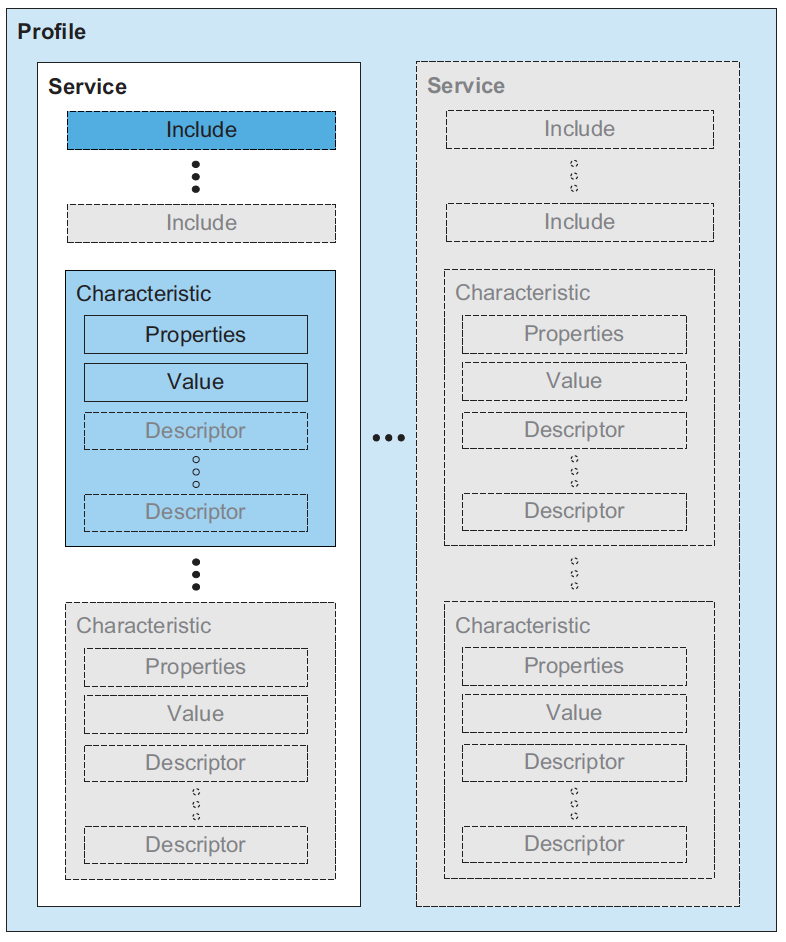
When we look at the database, we can see that a characteristic value below a service holds the value related to the functionality that the service provides.
Furthermore, the characteristic descriptors that appear beneath a characteristic value describe the value...
This is how the hierarchical model assists us in organizing our GATT data.
UUIDs
As previously stated, the attribute data structure is used to store all data in a GATT server. One of the fields in that data structure is the UUID.
This means that each of the GATT attributes you intend to store (service, characteristic declaration, characteristic properties, and characteristic value) must have a unique identifier (UUID).
How do we assign UUIDs to these data types?
It depends if the UUID is for a custom service/characteristic or if it's for one of the Bluetooth SIG Adopted Profiles.
If it's for a custom service or characteristic, you can use any UUID you want as long as it doesn't conflict with the Bluetooth SIG's Adopted UUIDs. To learn more about generating your own custom UUID(s), refer to our previous post here.
However, if it is for a Bluetooth SIG Adopted Profile service/characteristic, you must use the UUID that the Bluetooth SIG has already assigned. A list of these UUIDs can be found here.
💡 Tip: In general, you don’t have to worry about assigning the UUIDs for the descriptors and properties. These are usually automatically assigned by the Bluetooth LE stack in use on a certain platform.
Enough with the long-winded introduction; let's get into the tutorial!
Four Steps To Designing Your GATT Server
Now that we understand how a GATT server stores data and the different ways to access that data, we can start creating our own GATT server.
The first step is identifying which profile you want to use (application use-case). This will determine the services and characteristics.
Instead of creating a "Hello World"-style application that simply shows you that we can dump some information on the screen, in this tutorial, we will take an example application that does something useful.
Real-World Application - “Bluetooth Weather Station”
Let's say we want to create a weather station that uses Bluetooth Low Energy (LE) to interact with a smartphone.
The weather station will have some sensors to measure the temperature, humidity, and pressure. It will also have an LCD screen so we can see the current readings without having to pull out our phone.
Step 1: Describe what your application will do.
The data flow for this weather station application will look like this:
The weather station will take readings from the sensors and store them, and therefore it will act as the GATT server.
The smartphone will then connect to the weather station and read the values of the characteristics, which represent the sensor readings. The phone can also subscribe to notifications so that it gets alerted whenever a new sensor reading is taken.
Now that we know what our application will do, we can start creating the GATT server.
Step 2: Define Your Characteristic Values, Permissions, and Descriptors
In this step, ask yourself these questions:
- What different application data points do I want my GATT server to store, share, or be controlled?
- How do I want other devices to interact with this data? Read-only? Writeable? Notifiable? Indicatable?
💡 Tip: the main difference between Notifications and Indications is that indications require the application layer to acknowledge their receipt by sending a confirmation message. In contrast, notifications do not require a confirmation.
- What security permissions do I want to set on this data? (e.g., authorized writes, encrypted reads/writes, etc.)
- Do I need descriptors for my data? For example, a user description descriptor?
The answer to these questions will help you define your characteristic values, permissions, and characteristic descriptors.
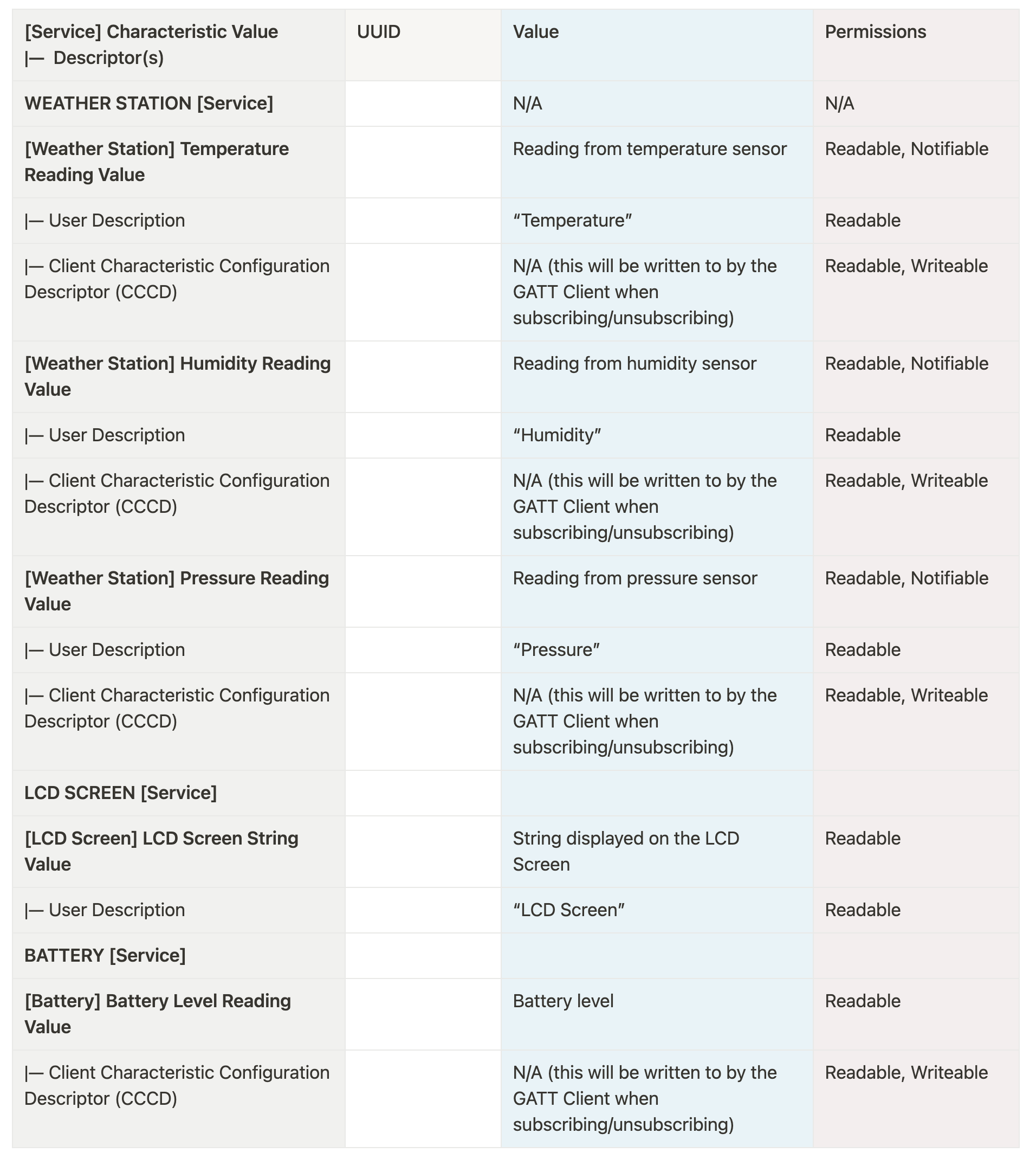
In our weather station example, we need the following data:
- Temperature readings in Celsius - Readable, Notifiable
- Humidity readings in relative percentages - Readable, Notifiable
- Barometric pressure in hPa - Readable, Notifiable
- LCD screen text - Writable, Readable
- Battery level - Readable
These data will be the different characteristic values stored in our weather station GATT server.
We also want to allow any device to connect to our weather station, so we won't set any security requirements.
We also need the following descriptors:
- Characteristic User Description - for example, for the LCD screen text, we can give it a friendly name like "LCD Screen" – same for the other characteristics (”Temperature” for the temperature characteristic, etc.)
- Client Characteristic Configuration Descriptor (CCCD) - This is a special descriptor that allows a GATT client to subscribe/unsubscribe to notifications and indications for a specific characteristic. For the temperature, humidity, and pressure readings so that the phone can subscribe to notifications. This allows a GATT Client to avoid polling the characteristic value of interest and getting “notified” when a new value is available, thus reducing the power consumption and bandwidth usage.
These descriptors will be the characteristic descriptors stored in our weather station GATT server.
The following table summarizes the information that we want to store on our GATT server and the permissions that we want to give for each:
- User Description: UTF-8 string to describe the Characteristic Value for a better user experience
- UUID: Standard/Adopted UUIDs are defined in https://btprodspecificationrefs.blob.core.windows.net/assigned-values/16-bit UUID Numbers Document.pdf
Step 3: Build up the hierarchy by forming services
Now that you have defined your characteristic values, permissions, and characteristic descriptors, you can start creating your GATT service by grouping your characteristics together.
Ask yourself these questions:
- Do all my characteristics belong to the same service (functionality), or can they be grouped into multiple services?
- If there are multiple services, which ones should I consider as my primary services?
In our weather station example, we will be creating three services called:
- "Weather Station" service (custom)
- “LCD Screen” service (custom)
- “Battery Level” service (SIG-Adopted)
The "Weather Station" service will group together the temperature, humidity, and pressure readings. This is because they all relate to the weather parameters.
The battery level and LCD screen readings will each have their own service since they don't relate to each other.
Step 4: Decide on your UUIDs
Now that you have decided on your services and characteristics, you need to give each of them a unique identifier called a UUID.
There are two ways to generate a UUID:
- Use a pre-defined UUID - e.g., the 16-bit (or 32-bit – not common) Bluetooth SIG assigned UUIDs for officially adopted services and characteristics
- Generate a random UUID (128-bit) - e.g., using a Universally Unique Identifier (UUID) generator for custom services and characteristics [see the previous post on choosing your UUIDs]
Ask yourself these questions:
- Which amongst my services are already predefined by the SIG so I can re-use their UUIDs? (Public services and characteristics)
- How will I generate UUIDs for my custom services and characteristics?
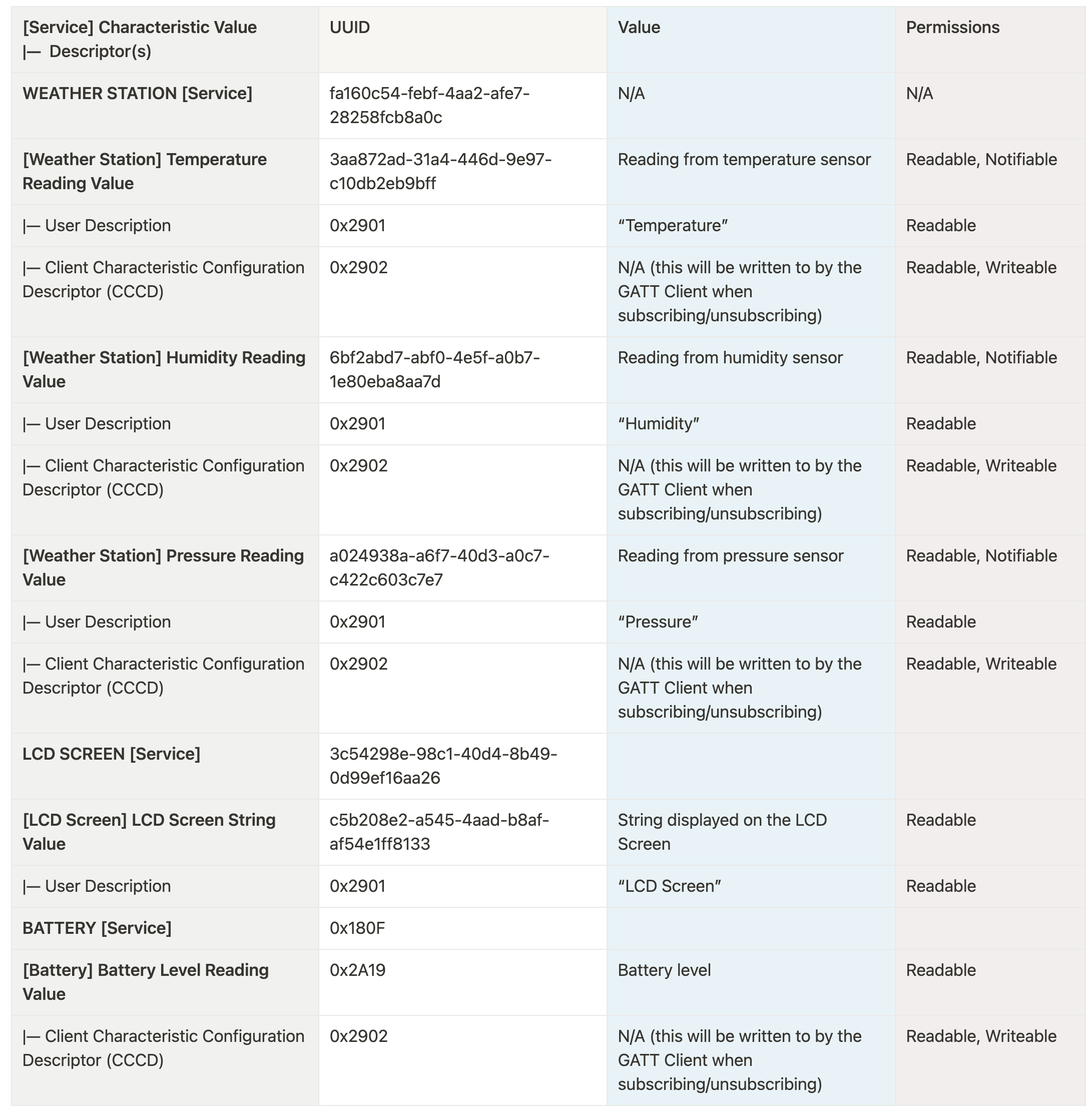
In our weather station example, we will generate random UUIDs for our “weather station” service and characteristics and the “LCD screen” service and characteristic using SiLab's UUID Configurator Tool. These two are our custom services.
And, since the battery level service is already an officially adopted one, we will use one of the 16-bit Bluetooth SIG assigned UUIDs for it.
We also do not have to create UUIDs for the Descriptors (User Description, CCCD, etc.); those have UUIDs that the SIG defines in the specifications (see Vol 3, Part G, Section 3.3.3 of the Bluetooth Core Specification document).
What’s cool is that by using Silicon Labs’ GATT Configurator Tool, we don’t even have to worry about generating any custom UUIDs or assigning the correct UUIDs for the adopted services and characteristics. It all gets handled automatically for us.
The following table shows the UUIDs that we have generated for our weather station application using the GATT Configurator Tool:
Demo: Create your GATT database using Silicon Labs' GATT Configurator Tool [Simplicity Studio]
The GATT Configurator Tool is a GUI tool that allows you to create and edit your GATT database files when developing on Silicon Labs' chipsets/development kits/modules.
Here's a video tutorial showing how it's done:
Let's Recap!
In this tutorial, we learned:
- All about the most important attributes used in Bluetooth LE: Profiles, Services, Characteristics, and Descriptors.
- That these attributes are structured hierarchically on the GATT Server, in such a way that's very similar to a database.
- How to design the GATT Server for a custom device, in four steps.
Finally, we showcased and example of how to configure your GATT server using the Silicon Labs GATT Configurator Tool that's included part of Simplicity Studio (v5).


