1.5 Your First Scan
Introduction
So far you've set up your dongles, learned the AT command basics, and configured your devices for their roles. Now let's bring it all together with your first real Bluetooth LE interaction: one dongle will broadcast its presence, and the other will discover it.
This is how every Bluetooth LE connection begins in the real world: a peripheral advertises, a central scans, and they find each other. By the end of this lesson, you'll have seen this happen with your own hardware.
How Bluetooth LE Discovery Works
Before we start typing commands, let's understand what's happening at the protocol level.
Bluetooth LE uses three dedicated advertising channels (channels 37, 38, and 39) for device discovery. These three channels are spread across the 2.4 GHz band to minimize interference. If one channel is blocked by Wi-Fi or a microwave oven, the other two still work.
When a peripheral advertises, it broadcasts small packets of data on these three channels in a repeating cycle. In legacy advertising, the advertising data is between 0 and 31 bytes (31 is the spec's maximum for legacy advertising PDUs). Bluetooth 5.0 introduced extended advertising, which can carry much larger payloads on secondary channels; we'll cover that in Module 3. When a central scans, it listens on those same three channels for advertising packets. If the timing aligns (and it usually does within a few hundred milliseconds), the central hears the peripheral's advertisement.
This is a deliberately simple system, designed to be fast, low-power, and reliable even in noisy radio environments. I've always appreciated how elegant this design is. Three channels is all it takes for reliable discovery.
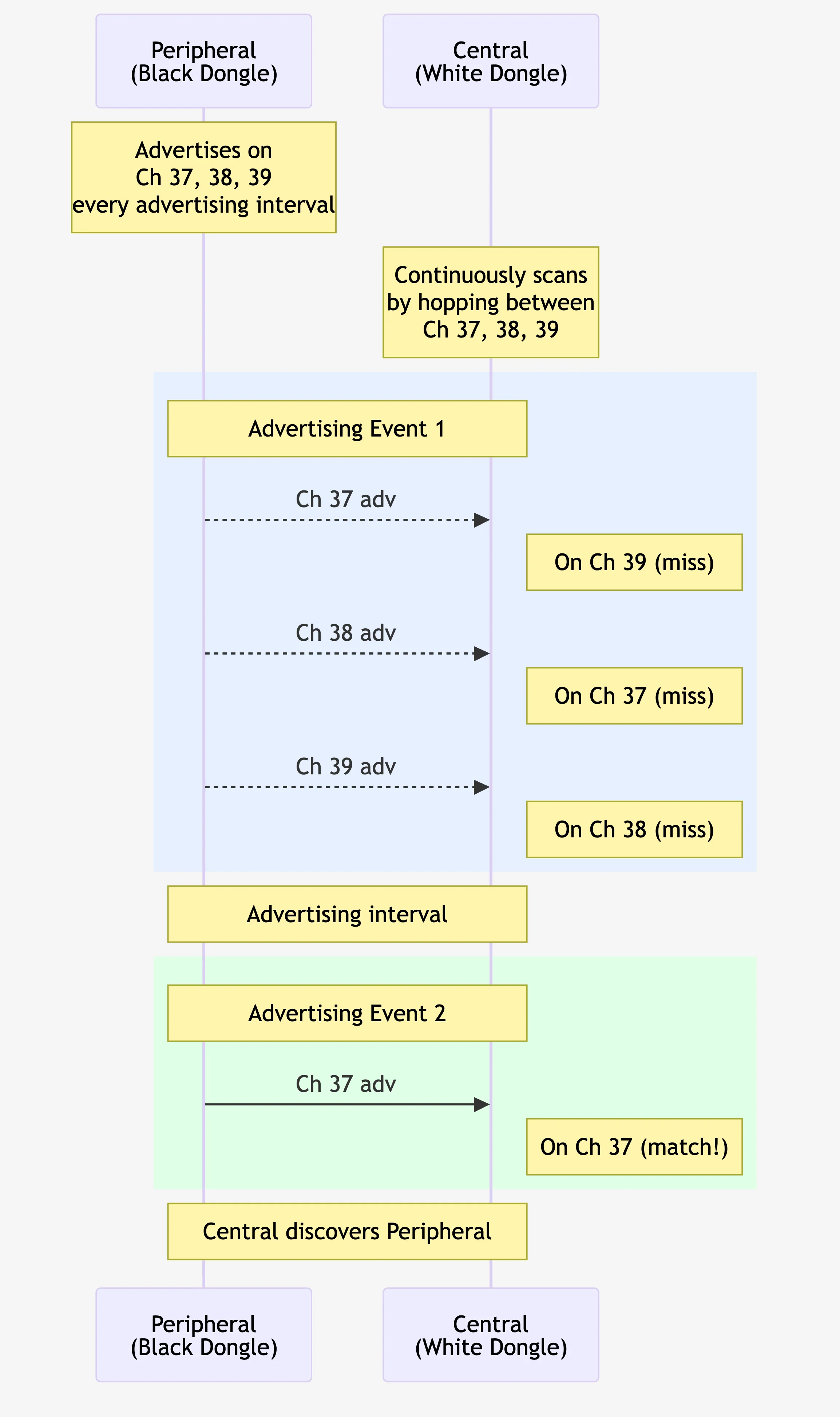
Advertising and scanning: the peripheral broadcasts on all three channels each advertising interval while the central hops between them. Discovery happens when the channels align.
Step 1: Start Advertising from the Peripheral (Black) Dongle
Let's make the peripheral (black) dongle visible. In the peripheral dongle's terminal, first set a custom name in the advertising data so you can easily spot your dongle in scan results:
AT+ADVDATA=0B:09:50:45:52:49:50:48:45:52:41:4C
OK

ADVERTISING DATA: 0B095045524950484552414C
This encodes the name "PERIPHERAL" in the advertising packet. In hex, each byte has a meaning: 0B is the length (11 bytes follow), 09 is the AD type for "Complete Local Name," and the remaining 10 bytes are the ASCII codes for the letters P E R I P H E R A L. We'll explore the full Length-Type-Value format in Module 3; for now, just know this is how you set the name other devices see when scanning.
Now switch to peripheral mode:
AT+PERIPHERAL
OK
The peripheral dongle is now in peripheral-only role. Start advertising:
AT+ADVSTART
Advertising type: GAP_CONN_MODE_UNDIRECTED Advertising interval minimum: 1100 maximum: 1100

ADVERTISING...
The peripheral (black) dongle is now broadcasting advertising packets on channels 37, 38, and 39 with the name "PERIPHERAL" included in its advertising data.
AT+ADVSTART returns ERROR?
Two common causes:
- Wrong role: You're in Central mode. Only Peripheral or Dual role can advertise. Run
AT+PERIPHERALfirst. - Already advertising: On some firmware versions this is an error. Run
AT+ADVSTOPfirst, then try again.
You can verify it's advertising:
AT+GAPSTATUS
Peripheral role

Not Connected

Advertising
The status now shows "Advertising." The dongle is actively sending packets roughly every 700 ms (the default advertising interval of 1100 units, where each unit is 0.625 ms).
Step 2: Scan from the Central (White) Dongle
Now let's listen for that advertisement. Switch the central dongle into central mode:
AT+CENTRAL
OK
Then run a 5-second scan:
AT+GAPSCAN=5
SCANNING...

[01] Device: [1]75:ED:05:F9:CC:74  RSSI: -46
... (25 more devices trimmed for readability) ...
[27] Device: [0]<PERIPHERAL-ADDRESS>  RSSI: -13 (PERIPHERAL)
... (21 more devices trimmed for readability) ...
[48] Device: [1]C5:66:E5:11:D4:1C  RSSI: -83
SCAN COMPLETE
That's a list of every Bluetooth LE device advertising near you. In a typical home or office it's common to see anywhere from 20 to 60+ devices in a single short scan, especially if you're near phones, laptops, fitness trackers, smart home hubs, or other people's devices in a dense building. Bluetooth LE is everywhere. One of those lines is your peripheral (black) dongle; look for the MAC address you wrote down earlier. The [0] prefix means a public address (manufacturer-assigned), while [1] means a random address.
Note: The scan output in this lesson (and other broad scans throughout the course) is trimmed for readability;
... (N more devices trimmed for readability) ...replaces the devices we omitted to keep the output short. Your actual scan will look similar but will list every device in full.
Tip: All our scan exercises use a timer (
AT+GAPSCAN=5scans for 5 seconds). If you ever runAT+GAPSCANwithout a timer, the scan runs indefinitely. Press Ctrl+C to stop it.
Tip: The scan duration accepts whole seconds only (minimum 1). Using
AT+GAPSCAN=0orAT+GAPSCANwith no parameter starts an indefinite scan that runs until you press Ctrl+C. Decimal values likeAT+GAPSCAN=0.5return ERROR.
Notice the (PERIPHERAL) label at the end of your dongle's line: AT+GAPSCAN decodes the Complete Local Name from each device's advertising data and shows it in parentheses automatically. That's your peripheral (black) dongle. Devices that don't include a name in their advertising data show up without a label.
Key Takeaway: Every Bluetooth LE device you've ever connected to (smartwatches, fitness trackers, smart light bulbs) went through exactly this advertising-and-scanning process. You just did it manually with AT commands.
Command Quick Reference
| Command | What It Does |
|---|---|
AT+ADVDATA=<hex> | Set advertising data (name, flags, etc.) |
AT+PERIPHERAL | Switch to peripheral role |
AT+ADVSTART | Start advertising |
AT+GAPSTATUS | Check current role and advertising/connection state |
AT+CENTRAL | Switch to central role |
AT+GAPSCAN=N | Scan for N seconds |
Summary
In this lesson, we:
- Learned how Bluetooth LE discovery works (advertising on channels 37, 38, 39; scanning to listen)
- Started advertising from the peripheral (black) dongle and scanned from the central (white) dongle
- Saw your own device appear in scan results
You should now be able to make one dongle advertise and discover it from another, the fundamental building block of every Bluetooth LE interaction.
What's Next
In the next lesson, we'll dig deeper into scan results: what the RSSI numbers mean, how to control scan duration, and what happens when a device stops advertising.